
Nothing kills immersion faster than stutter, input lag, and choppy gameplay. If you’re here, you’re not looking for vague advice — you want to increase fps in pc games and get back to smooth, responsive performance.
Low FPS isn’t always caused by one obvious issue. It can stem from in-game settings, outdated drivers, background processes, or deeper system-level bottlenecks. That’s why this guide takes a methodical approach — from quick graphics tweaks to advanced optimizations — all tested across multiple hardware setups and game engines.
Whether you’re a casual player or competitive gamer, you’ll find clear, step-by-step fixes here to boost performance and eliminate frustrating slowdowns for good.
Beyond the Game: System-Wide Tweaks for Maximum Performance
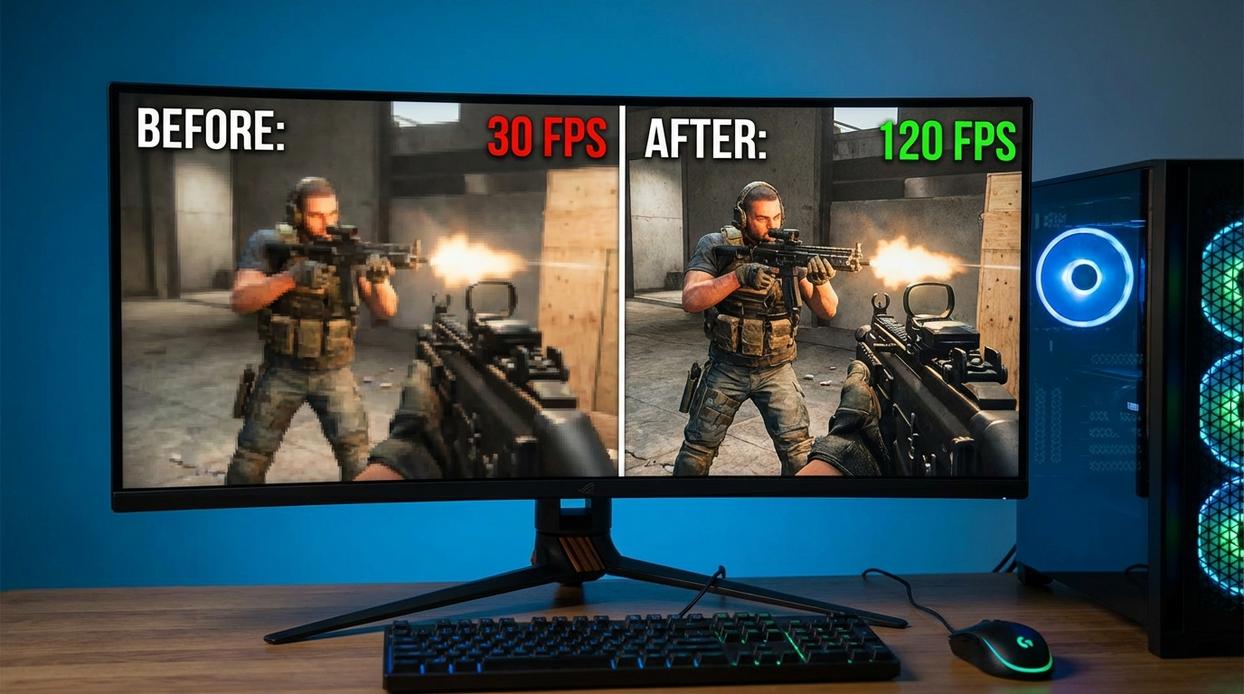
I once spent an hour lowering in-game shadows, textures, and anti-aliasing—only to realize my GPU drivers were six months out of date. The moment I installed the latest Game Ready driver, my frame rate jumped instantly. Lesson learned.
If you want to increase fps in pc games, start outside the game itself.
-
Update Your Graphics Drivers (CRITICAL STEP)
Graphics drivers are the software that lets your operating system communicate with your GPU. NVIDIA and AMD release “Game Ready” drivers—optimized updates tailored for new titles. These often include performance patches and bug fixes timed with major launches (both companies document these improvements in official release notes). Skipping this step is like buying a sports car and never changing the oil. Pro tip: Always choose a clean installation if you’re troubleshooting persistent issues. -
Optimize Power Settings
Windows defaults to “Balanced” mode, which can throttle CPU performance. Switch to High Performance or Ultimate Performance in Power Options. On Linux, tools like Feral Gamemode temporarily prioritize system resources for gaming. (Yes, your PC might be “saving energy,” but it’s also saving your FPS.) -
Disable Background Processes
Open Task Manager (orhtopon Linux) and close resource-hungry apps like browsers or cloud sync tools. I’ve seen Chrome quietly eat 2GB+ of RAM. That’s a whole game level’s worth of memory. -
Enable Game Mode
Windows Game Mode allocates more consistent resources to your game and reduces background activity. While some argue it’s negligible, Microsoft states it stabilizes performance during gameplay. -
Disable Unnecessary Overlays
Steam, Discord, and NVIDIA overlays are useful—but stacking them can cause conflicts and minor performance dips. Keep only what you need (your GPU will thank you).
For deeper adjustments beyond system tweaks, check out our guide on optimizing graphics settings for smooth gameplay.
Enjoy a Smoother Gaming Reality
You came here to fix low frame rates—and now you have a complete toolkit to diagnose and increase fps in pc games with confidence. No gamer should have to tolerate stuttering, lag spikes, or choppy visuals that break immersion and cost competitive moments.
By optimizing in-game settings, fine-tuning your operating system, and addressing hardware bottlenecks, you create cumulative performance gains that deliver real, noticeable improvements.
Don’t settle for subpar performance. Start with your in-game settings, apply the system tweaks, and take control of your frame rate tonight. Smooth, responsive gameplay is within reach—make the changes now and feel the difference immediately.